Staging and committing
Select Uncommitted changes at the top of the commit graph to see your working tree in the right-hand pane. It has two groups, Changes and Staged, each with Stage all or Unstage all. Every file shows its diff. Hover a file to show its stage or unstage button, or use Blame to see who last changed each line. Type a commit message and click Commit. Stash sets the current changes aside; see Stashes.
Each hunk header has Stage hunk (or Unstage hunk) and Discard hunk. Discard asks once more: the button turns into Confirm discard, and a second click discards the hunk.
A rename you staged (git mv, or staging both the deletion and the new file) is one Staged
row under the new name with "Renamed from …": its diff shows only the edits, an image previews
the old version against the new one, and unstaging it unstages both names. A file moved on disk
but not staged yet shows as deleted plus new, like git status.
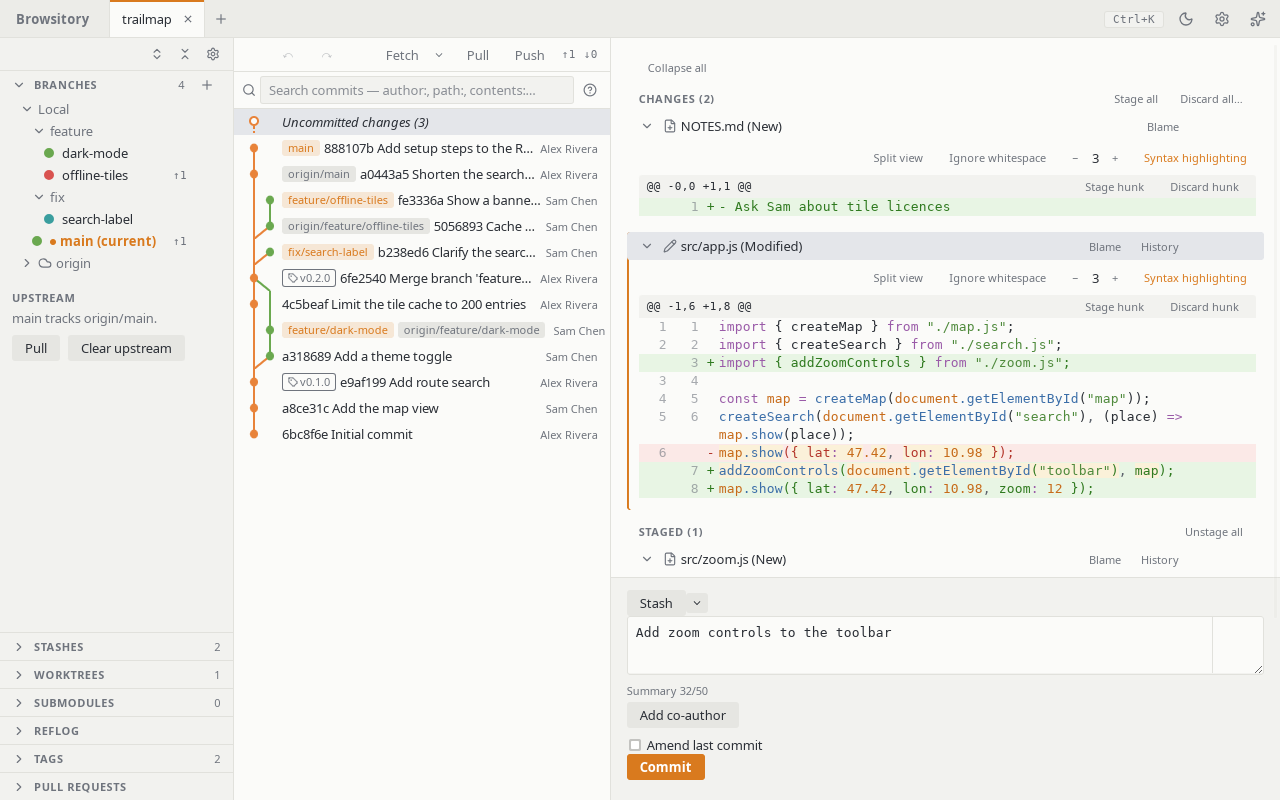
Writing the commit message
Below the message, Summary 42/50 counts the characters of the first line. Past the limit it turns to a warning color, because many tools cut longer summaries; it never stops a commit. A faint ruler marks column 72 for wrapping the body, and the field uses a monospace font while the ruler is shown so the column lines up. Change the limit, the ruler column (both 10 to 200) or turn the ruler off under Preferences → Commit message.
Add co-author lists the authors of the last 1,000 commits on the current branch (newest
first, without you); type to filter, or type a new Name <email> and press Enter. Each co-author
shows as a chip (× removes it) and is added to the message as a Co-authored-by: Name <email>
trailer when you commit, after any trailers the message already ends with and never twice.
The chips stay until the commit lands, so a failed hook keeps them, and Commit without hooks
uses them too. They are hidden while a merge, cherry-pick or revert pre-fills the message.
Staging individual lines
In a diff, select lines by clicking one, Shift+clicking to extend, Ctrl/Cmd+clicking to add
or remove one, or dragging across several. Then use Stage lines, Unstage lines or
Discard lines in the hunk header. With the keyboard, ↑/↓ move a line cursor inside the
active hunk and select that line, Shift+↑/Shift+↓ extend the selection, and [ / ] jump
to the previous or next hunk (which clears the selection). s stages or unstages and d d
discards the selection, or the whole hunk when nothing is selected.
If the file changed since its diff was shown (for example you edited it in another editor), line actions don't run; the diff refreshes so you can select again. Discarding a whole hunk of an untracked file empties the file rather than deleting it. Staging a whole hunk doesn't stage a file's mode change (such as the executable bit); stage the whole file for that.
Discarding and ignoring files
Open a file's ⋯ menu, right-click the file header, or press Shift+F10 (or the Menu key) with the file row focused, for Discard changes…. Staged files don't offer discard; unstage them first. A confirmation dialog appears. A discard can be reverted with Undo (see Undo and redo) unless the file is changed again afterwards. Discard all… next to Stage all discards the unstaged changes of exactly the files its confirmation lists. It deletes untracked files and skips conflicted ones. Folders, such as an untracked nested repository, are never deleted; any file that couldn't be discarded is named in an error after the rest are done. Discarding never writes or deletes outside the repository, including through a symlinked folder. If a tracked file was replaced by a symbolic link, discarding removes the link and restores the file (the link's target is never touched), like git; reset, undo/redo, aborting a merge or rebase and resolving a conflict do the same. If a tracked folder was replaced by a file of the same name, discarding a file that was in the folder, or a hunk or lines of it, refuses and names the file in the way ("Couldn't discard 'd/f': 'd' is now a file, not a folder. Discard or move 'd' first."), also when the folder was further up; Discard all with both the file and the folder's files deletes the file first and then restores the folder. If a tracked file was replaced by a folder, discarding the file deletes the untracked files in the folder, like git, and Undo brings them back; if the folder holds anything Undo can't bring back (an ignored file or a nested repository), the discard refuses and names it ("Couldn't discard 'd': it is now a folder holding 'd/x.log', which Undo can't bring back. Move it first."), and Discard all leaves the folder's untracked files alone too.
For untracked files the menu also offers ignore items. Each appends a pattern to the
repository's .gitignore (creating it if needed; a .gitignore that is a symlink is left
alone and reported). Ignore file is always offered.
Ignore all *.ext appears only when the file name has an extension. Ignore folder
⟨folder⟩/ appears only when the file is in a subfolder. If .gitignore is read-only, the
ignore items change nothing and say "'.gitignore' is read-only. Make it writable, then try
again." .gitignore is replaced whole, so a failed write leaves it as it was. On Windows, if
another program keeps .gitignore open so it can't be replaced, the ignore items say
"'.gitignore' is open in another program. Close it, then try again." and change nothing.