History and diffs
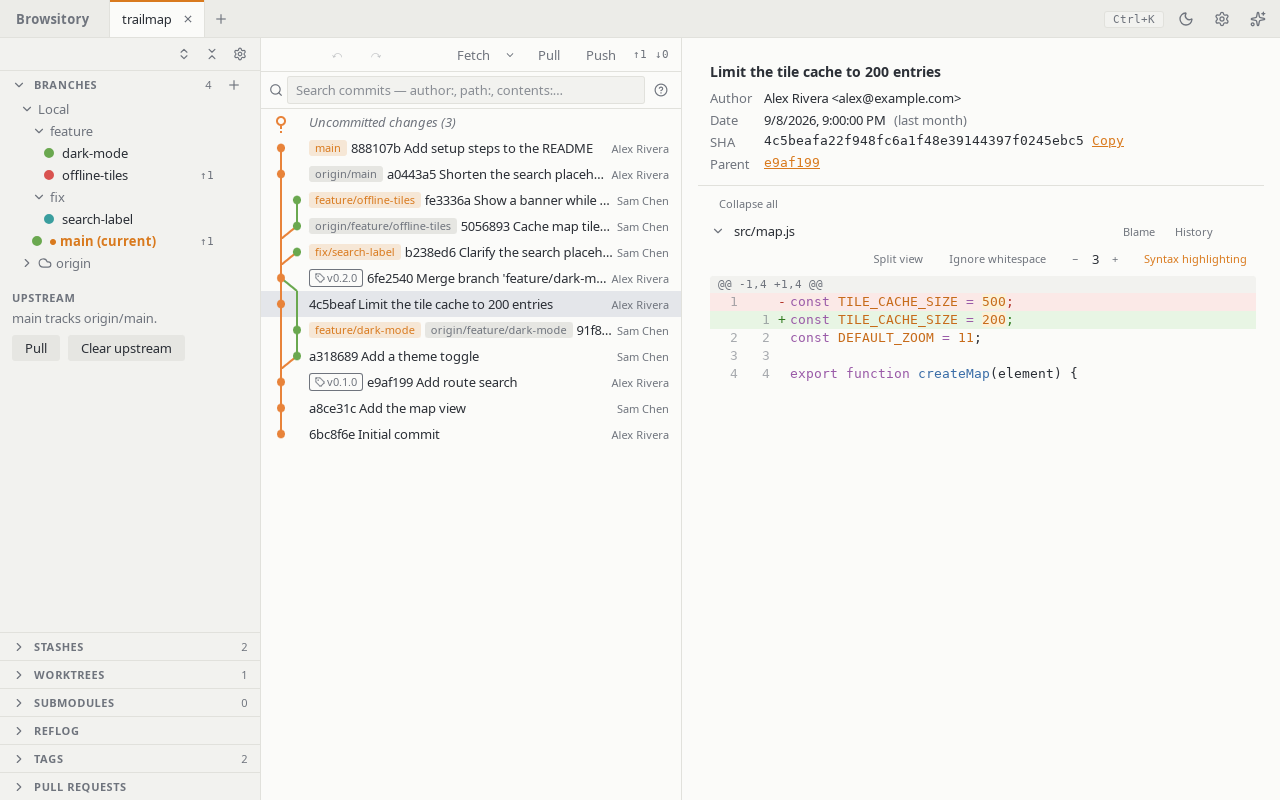
Click a commit in the graph to see the files it changed and their diffs. Blame on a file shows who last changed each line. Each row shows the branches and tags that point at the commit, and the author and date (they hide when the pane is narrow). Selecting a commit shows its full message, author, date, full SHA (Copy copies it) and parents above the file list; click a parent to jump to it. The graph loads the latest 300 commits; choose Load more at the bottom (or keep pressing ↓ past the last row) to load the next page. Use ↑/↓ or j/k to move through the commits, and PageUp/PageDown to move a page at a time.
The bar above the graph has Fetch, Pull and Push buttons for the
current branch's upstream, with ahead/behind counts (for example ↑2 ↓1)
based on the last fetch.
Which branches the graph shows
At first the graph shows the commits of every local branch. In the Branches section, each branch has a coloured dot in front of its name. Click the dot (Show … in graph) to add the branch to the graph or take it out; this works for remote branches too. A branch's menu has Isolate branch, which shows only that branch. Show all branches in the + menu of the Branches section goes back to every local branch. Browsitory remembers the choice per repository.
Image previews
A changed PNG, JPEG, GIF, WebP or SVG file shows the old and new image side by side (Before and After) instead of a text diff, with each image's size in pixels and file size, on a checkerboard so transparency shows. A new file shows Added on the left and a deleted one Deleted on the right. This works in the working tree, commits, stashes and compares. Each side is previewed up to 20 MB; a bigger one says "Too large to preview". The image type is checked from the file's content, not its name, and a file that isn't really one of these images says "Can't display this image". Images are only shown as pictures, so an SVG can never run a script. An SVG is text too: Show text diff switches to its diff (and back with Show image). A conflicted image opens the conflict pane, like any conflict.
Diff options
The diff toolbar has four controls. Split view shows the old and new version side by side; Unified view goes back to one column. The other three are remembered across sessions: Ignore whitespace, Context lines (− and +, 0 to 20) and Syntax highlighting. While whitespace is ignored, partial staging (lines and hunks) is unavailable in the working tree and a hint says so; staging and unstaging whole files still works. Right after you change an option, hunk and line actions return once the diff has reloaded with it. Highlighting covers common languages and is skipped when a file's diff has more than 2,000 lines in total across its hunks. The command palette has an entry for each option.